How to Use Canva for Facebook Ad Templates
Canva can shorten the distance between an idea and a campaign asset, but it can also multiply inconsistent files quickly. The difference is whether the team edits isolated pages or operates an approved master system.
The workflow below covers page setup, brand controls, editable boundaries, hierarchy, placement adaptation, export naming, and final QA. It is written for handoffs, not only solo design. Canva makes editing easy, but speed amplifies weak hierarchy, inconsistent spacing, and accidental changes unless the master file is controlled.
Quick answer: Protect one master, duplicate before campaign edits, adapt compositions for each ratio, and inspect the exported file at mobile size. Canva speed is valuable only when the control version remains identifiable.
Choose the Ad Before Opening Canva
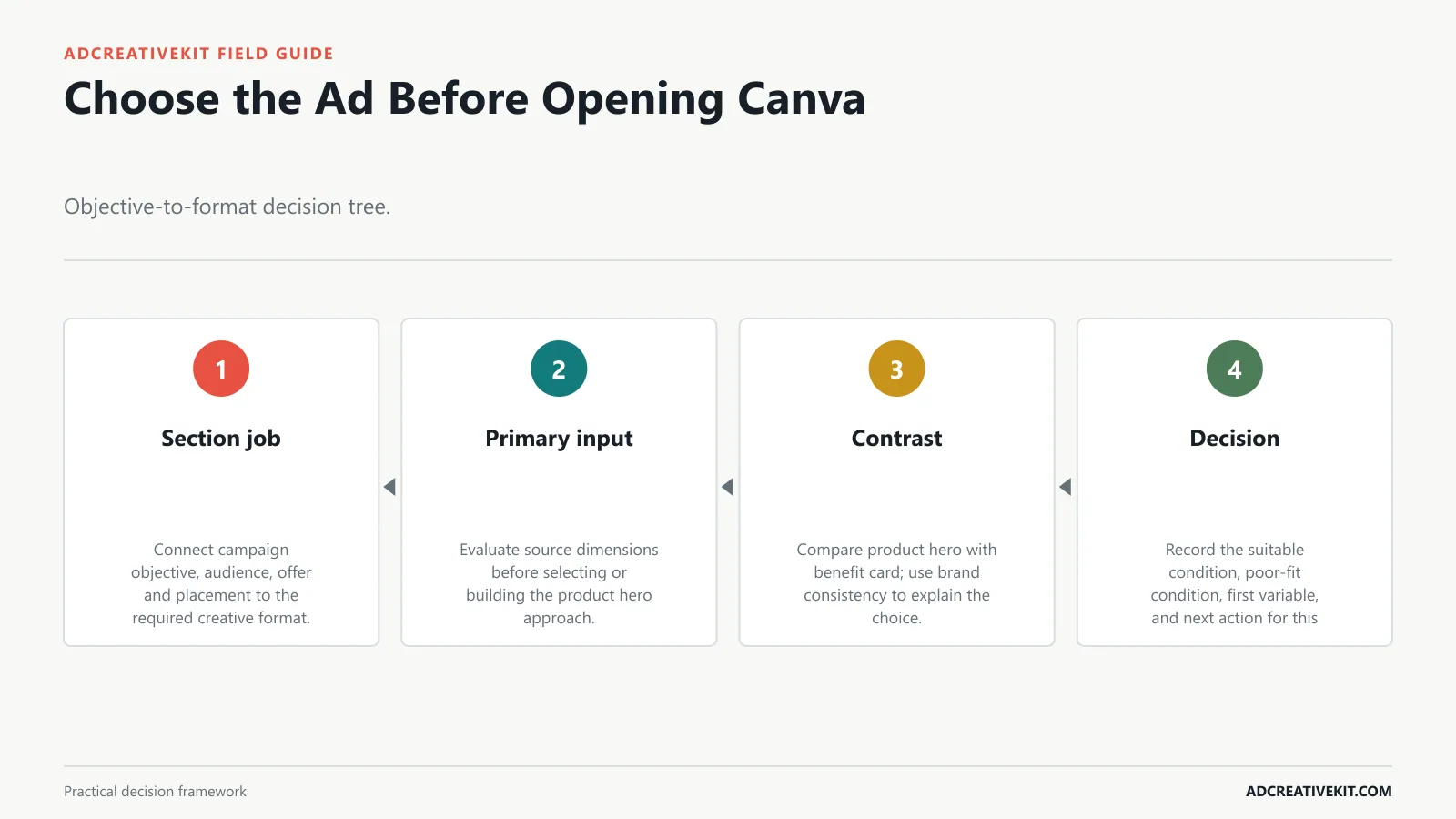
Decide the audience, funnel job, product, promise, evidence, offer, CTA, and destination before opening Canva. Design software can organize the argument, but it cannot supply the missing customer insight. Name pages, lock brand elements, define text roles, and separate source artwork from placement adaptations so another editor can change the offer without damaging the system.
Facebook ad templates in Canva are useful when you need to move faster without handing every small creative change to a designer. The risk is that easy editing can also create messy ads: wrong dimensions, weak hierarchy, tiny mobile text, inconsistent branding, or generic layouts that do not match the offer.
Export and QA: download the file, preview on mobile, and check naming before upload.
Weak: Customers love us. Stronger: Over 1,000 buyers mention the same comfort detail.
Use source dimensions as a preflight checkpoint for the product hero page. Then duplicate from the approved master before adjusting brand consistency. This preserves a clean control and makes accidental differences easier to spot.
Tie every Canva action to a performance decision: message hierarchy, evidence, placement, controlled variation, or production QA.
| Canva checkpoint | File action | Review |
|---|---|---|
| Master | Lock approved logo, type roles, and source assets | No campaign-specific copy in the reusable source |
| Variant | Duplicate and label the one changed variable | Control remains untouched |
| Placement | Recompose crop and hierarchy for the canvas | Preview at phone size and around interface overlays |
| Export | Use consistent names and required file settings | Open the final asset before handoff |
Confirm current requirements in Canva Facebook Ad Maker. Use the source for platform or compliance facts, while keeping performance conclusions tied to your own account evidence.
Find a Canva Template That Fits the Goal
Search by the message structure you need, not by the most fashionable style. Reject templates whose hierarchy depends on long copy, decorative clutter, or imagery your product cannot credibly reproduce. Name pages, lock brand elements, define text roles, and separate source artwork from placement adaptations so another editor can change the offer without damaging the system.
This guide shows a practical Canva workflow for Facebook ad templates: choosing the right size, editing the message, adapting layouts for placements, exporting correctly, and reviewing the final creative before uploading it to Meta Ads Manager. For broader editable assets, see Canva templates for ads . For ecommerce-specific layouts, see Facebook ad templates for ecommerce .
Do not start with colors. Start with message hierarchy. The fastest way to improve an editable template is to make the headline, product image, proof point, and CTA work together.
If multiple people touch the ad, create a simple handoff system. Keep one source design, duplicate versions for each placement, and name exports by campaign, placement, angle, and version. This makes later testing easier because the media buyer can identify which creative angle actually ran.
Use brand consistency as a preflight checkpoint for the benefit card page. Then duplicate from the approved master before adjusting mobile readability. This preserves a clean control and makes accidental differences easier to spot.
Show the transformation from a generic preview to a product-specific ad so the reader learns what to replace and why.
Customize checklist
- Duplicate the approved benefit card page before editing.
- Lock elements responsible for brand consistency.
- Adapt the composition for mobile readability, not by proportional shrinking alone.
- Open and inspect each exported file.
Set the Correct Meta Ad Dimensions
Create source layouts for the placements you will actually buy. Use current Meta guidance for supported formats, then protect critical text and product details from placement-specific crops and interface overlays. Name pages, lock brand elements, define text roles, and separate source artwork from placement adaptations so another editor can change the offer without damaging the system.
Start by choosing the placement you actually plan to run. A square feed ad, portrait feed ad, and full-screen story creative should not be treated as the same layout with different cropping.
CTA: should match the campaign stage: shop now, compare, claim offer, learn more, or get template.
Canva makes duplication easy, but testing still needs discipline. Create one control version, then duplicate it into focused variants: one headline test, one proof test, one product image test, or one offer-framing test. If every duplicate changes layout, copy, color, image, and CTA together, the results will be harder to interpret.
Use mobile readability as a preflight checkpoint for the testimonial page. Then duplicate from the approved master before adjusting safe zones. This preserves a clean control and makes accidental differences easier to spot.
Create placement adaptations with explicit safe-area and crop checks instead of treating Resize as final approval.
Replace Template Content in the Right Order
Replace the hierarchy in order: product or scene, promise, supporting proof, offer terms, CTA, and only then colors and decoration. This stops the original demo content from dictating the finished message. Name pages, lock brand elements, define text roles, and separate source artwork from placement adaptations so another editor can change the offer without damaging the system.
Define the job of the ad: cold traffic, retargeting, product education, sale promotion, or social proof.
Resizing is not the same as approving. After duplicating a Canva design into another size, check the visual hierarchy again. A headline that works in square format may become too wide in stories. A product image that looks balanced in portrait may feel tiny in landscape.
A simple system is to name each version by angle: benefit, objection, review, comparison, or offer. Then record those names in your ad account and testing matrix so the results become reusable learning rather than scattered files.
Use safe zones as a preflight checkpoint for the comparison page. Then duplicate from the approved master before adjusting export quality. This preserves a clean control and makes accidental differences easier to spot.
Use controlled duplication and descriptive page names so the exported files reveal exactly which variable changed.
Review checklist
- Duplicate the approved comparison page before editing.
- Lock elements responsible for safe zones.
- Adapt the composition for export quality, not by proportional shrinking alone.
- Open and inspect each exported file.
Turn a Generic Template Into an Ecommerce Ad
A credible ecommerce transformation uses real product photography, a specific outcome, verifiable proof, and a destination-matched offer. The result should no longer read like the generic preview that attracted the editor. Name pages, lock brand elements, define text roles, and separate source artwork from placement adaptations so another editor can change the offer without damaging the system.
Choose the closest template: pick based on structure, not decoration. A discount ad needs a different hierarchy from a testimonial ad.
The best Canva template is not always the prettiest one. Choose based on the job of the ad. If the ad is selling a discount, the offer needs strong hierarchy. If it is building trust, the review or proof element needs more space. If it is explaining a product, the layout needs room for a feature or use-case breakdown.
This also helps future reporting: when every Canva export has a clear angle and version name, you can compare creative performance without guessing which visual or message actually influenced the result.
Use export quality as a preflight checkpoint for the offer page. Then duplicate from the approved master before adjusting source dimensions. This preserves a clean control and makes accidental differences easier to spot.
Clarify which Brand Kit and resize features depend on the user’s Canva plan; interface labels and availability may change.
Apply Brand Assets Without Losing Clarity
Use Brand Kit or documented styles to control logos, colors, and type roles, but allow the message to determine emphasis. Brand consistency should make the ad recognizable without lowering contrast or product clarity. Name pages, lock brand elements, define text roles, and separate source artwork from placement adaptations so another editor can change the offer without damaging the system.
Replace the headline first: make the main promise clear before changing colors or images.
Most template edits fail because the copy is dropped into the design without tightening. Before exporting, rewrite the headline until it does one clear job. Then make the supporting line earn its space.
Yes. Canva-style templates can work well for Facebook ads if you adapt the message, size, visuals, and CTA for the placement instead of exporting the first draft unchanged.
Use source dimensions as a preflight checkpoint for the carousel cover page. Then duplicate from the approved master before adjusting brand consistency. This preserves a clean control and makes accidental differences easier to spot.
Set the intended dimensions from current placement requirements and keep source files flexible enough to recompose when those requirements change.
Customize checklist
- Duplicate the approved carousel cover page before editing.
- Lock elements responsible for source dimensions.
- Adapt the composition for brand consistency, not by proportional shrinking alone.
- Open and inspect each exported file.
Connect this step to the ecommerce CRO checklist so the decision survives the handoff from concept to campaign and post-click experience.
Design for Mobile and Safe Cropping
Review every adaptation at phone size and inside a placement preview. Reposition elements for the crop instead of relying on automatic resizing to preserve hierarchy. Name pages, lock brand elements, define text roles, and separate source artwork from placement adaptations so another editor can change the offer without damaging the system.
Add product and proof: use real product images, reviews, feature callouts, or before/after context where appropriate.
Weak: New arrivals are here. Stronger: New summer sets built for travel days.
Use 1080 x 1080 for square feed ads, 1080 x 1350 for portrait feed ads, 1080 x 1920 for stories/reels, and 1200 x 628 for landscape link-style creative.
Use brand consistency as a preflight checkpoint for the Story adaptation page. Then duplicate from the approved master before adjusting mobile readability. This preserves a clean control and makes accidental differences easier to spot.
Replace sample imagery and copy in decision order so a template’s original content does not survive as irrelevant decoration.
Confirm current requirements in Canva Brand Kit. Use the source for platform or compliance facts, while keeping performance conclusions tied to your own account evidence.
Create Six Controlled Variations
Duplicate the approved control and change the variable named in the brief. Six useful variants might isolate two hooks, two proof treatments, and two product crops; they should not become six unrelated redesigns. Name pages, lock brand elements, define text roles, and separate source artwork from placement adaptations so another editor can change the offer without damaging the system.
Check brand consistency: colors, type, logo placement, and product treatment should match your store.
Weak: High quality skincare. Stronger: A simple evening routine for dry skin.
Use a template when you need a proven layout and fast production. Design from scratch when the campaign needs a very specific concept or brand treatment that existing layouts cannot support.
Use mobile readability as a preflight checkpoint for the retargeting reminder page. Then duplicate from the approved master before adjusting safe zones. This preserves a clean control and makes accidental differences easier to spot.
Use brand assets as constraints for consistency, while preserving sufficient contrast and a clear product-first reading order.
Review checklist
- Duplicate the approved retargeting reminder page before editing.
- Lock elements responsible for mobile readability.
- Adapt the composition for safe zones, not by proportional shrinking alone.
- Open and inspect each exported file.
Connect this step to the marketing hook formulas so the decision survives the handoff from concept to campaign and post-click experience.
Export, Name, QA and Improve the Ads
Export the format required by the placement, use a naming convention that exposes the test variable, and retain the editable source. Complete a final QA for spelling, claims, crop, destination, and mobile readability. Name pages, lock brand elements, define text roles, and separate source artwork from placement adaptations so another editor can change the offer without damaging the system.
Create placement variants: resize manually and review each version instead of trusting automatic cropping.
Weak: Shop now and save. Stronger: Build your starter kit before the bundle price ends.
Once your Canva edit is ready, review it with the Facebook ad creative review checklist and organize your next variants in the ad testing matrix template .
Use safe zones as a preflight checkpoint for the product hero page. Then duplicate from the approved master before adjusting export quality. This preserves a clean control and makes accidental differences easier to spot.
Finish with export, naming, ownership, and QA rules so the approved design remains traceable after it leaves Canva.
Frequently asked questions
Should every Facebook placement use the same Canva file?
Use the same concept, not necessarily the same composition. Rebuild hierarchy for square, portrait, and vertical surfaces so crops, safe zones, captions, and UI overlays do not hide critical content.
What export should Canva users choose?
Choose the format that preserves the required quality and is accepted by the destination workflow, then inspect the exported file. Platform requirements can change, so confirm them before uploading.
How do teams prevent accidental template drift?
Protect an approved master, define editable fields, use page naming and version rules, and make campaign variants from duplicates. Review the final export rather than assuming the canvas matches it.
Maintain the Canva file as production infrastructure: approved master, named variants, placement pages, export history, and review status. That discipline preserves speed when more people begin editing.
Use the Facebook ad creative review checklist before launch, record the hypothesis in the repeatable ad testing system, and inspect post-click continuity with the ecommerce CRO checklist.
Confirm current implementation details in Canva Brand Kit before production.